 web frames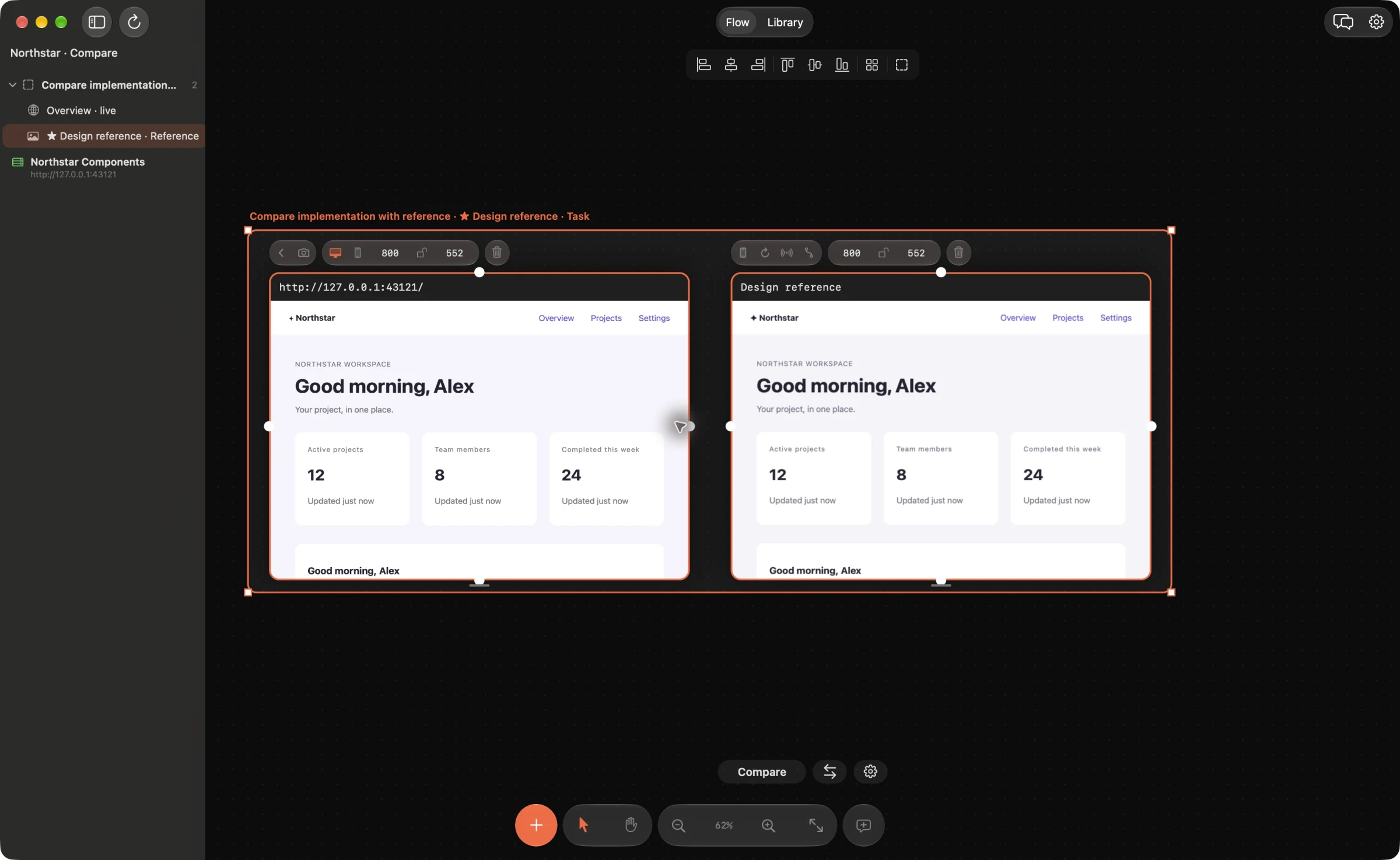
Prepare a fair comparison
Add the live URL or a route from your local project. Import a PNG, SVG, screenshot or PDF page as the reference. Set both frames to exactly the same logical width and height, and match the visible content and state. Let fonts and images finish loading before capturing the implementation.
A difference caused by a different account, language or theme is not necessarily a layout defect. Record those conditions in the frame name or comments so the agent can distinguish them.
Select two frames and run Compare
Select the implementation and reference and use Compare. In comparison settings, choose the local web source folder and approve sharing its source with your connected, signed-in coding agent. Compare needs that source context as well as the two loaded frames; account access and usage limits apply.
In 1.1.9, built-in Compare creates findings and a proposed change to one existing CSS file. It is a web implementation workflow. For image-only research or native Swift/Kotlin changes, ask your MCP-connected agent to inspect the frame images and report differences through its own workflow. Review AI findings rather than treating them as a pixel-perfect test or an accessibility audit.
Live web evidence can include DOM context and styles. An imported image or PDF page supplies visual evidence, coordinates and crops, but has no original web selector or editable component tree.
Make the findings actionable
Pin a comment to the specific mismatch and describe the expected result: “Align this heading with the form below” or “Use the reference’s spacing between these two rows”. Keep unrelated changes separate. A focused request is easier to inspect than a broad instruction to make the entire page match.
Give the agent the correct local source project when asking for a code fix. A public reference URL is evidence; it is not a writable copy of that website.
Verify after applying
Use Fix, inspect the patch and choose Apply when the changes are appropriate. Reload the live frame and repeat the visual comparison under the same conditions. Check the interaction and responsive behavior as well as appearance.
For native app changes made through an external agent, refresh the saved simulator recipe after rebuilding if needed. Built-in Apply does not edit Swift or Kotlin source. PDF and ordinary imported screenshots remain static until you explicitly replace or reimport them.
Example agent brief
Adapt the frame and section names to your board. Send this through your connected agent.
Compare these two frames at the same viewport. Report visible typography, spacing and alignment differences with exact regions. Ignore differences in sample text. Propose the smallest fixes and state what needs a human design decision.
Try this on your next review
Web Frames 1.1.9 runs on Apple Silicon Macs with macOS 15 or later.
Download Web Frames 1.1.9