 web frames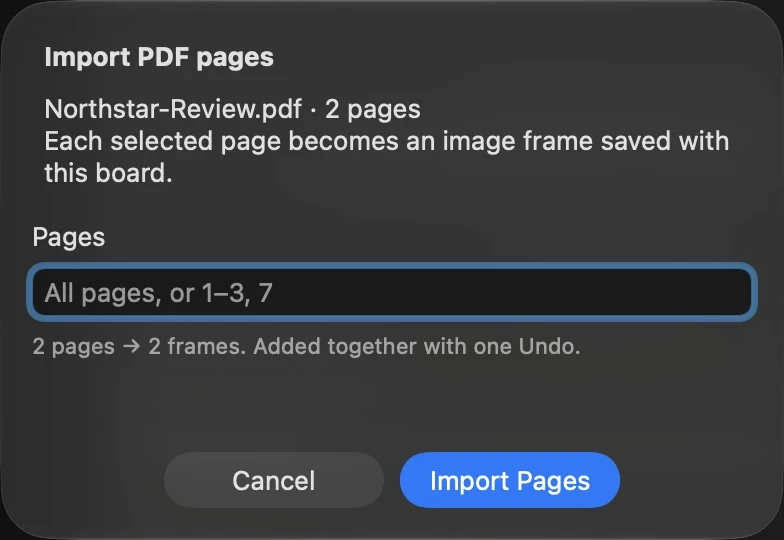
Choose the pages you need
Open Add Frames → Image / PDF and choose a PDF. You can also drag a PDF file from Finder onto the canvas, or copy the file in Finder and paste it into the board. In the page picker, leave the range empty for all pages or enter a selection such as 1–3, 7. Numbers start at 1; duplicates are removed and pages are imported in document order.
Each selected page becomes a frame named after the file and its page number. Use the optional frame name to label the set while keeping page numbers. When using Add Frames, review the thumbnails and click Add Frames to place them.
Review a deck, specification or exported design
Put a specification page next to the corresponding implementation. Add a point or region comment to the exact detail: a missing block, a different button or a spacing problem. For visual comparison, select a page and an implementation frame with comparable content and viewport dimensions. A whole A4 page and a small mobile viewport usually need a more focused comparison.
The coding agent can read imported page images and pinned comments. The import is visual: it does not turn PDF text into editable components, recover a DOM or make a scanned page searchable through OCR.
Save the board and use Undo
The rendered images are stored inside the .webframes document. After saving, you can move or delete the original PDF without losing the imported pages. A new version of the PDF does not silently replace them; import the changed pages again when you want a new reference.
A batch supports one Undo/Redo. Cancelling a page picker or the preparation step discards the new batch, including pages already prepared from another PDF in that operation. Existing frames stay in place.
Know the import limits
Import up to 50 PDF pages per operation from files up to 100 MB each. Images have a maximum long edge of 2048 pixels; large pages are downscaled, so use the original document for print-resolution inspection. Rotated pages, crop bounds and visible annotations are included. If a PDF is locked, unlock it in Preview and save an unlocked copy first.
PDF rendering runs locally. Connecting an AI agent is optional; requesting AI analysis shares the evidence with that agent through your chosen connection.
Example agent brief
Adapt the frame and section names to your board. Send this through your connected agent.
Compare the imported specification page with the checkout frame. List missing content and visible layout differences. Refer to each finding by frame and pinned comment. Do not change code yet.
Try this on your next review
Web Frames 1.1.9 runs on Apple Silicon Macs with macOS 15 or later.
Download Web Frames 1.1.9