 web frames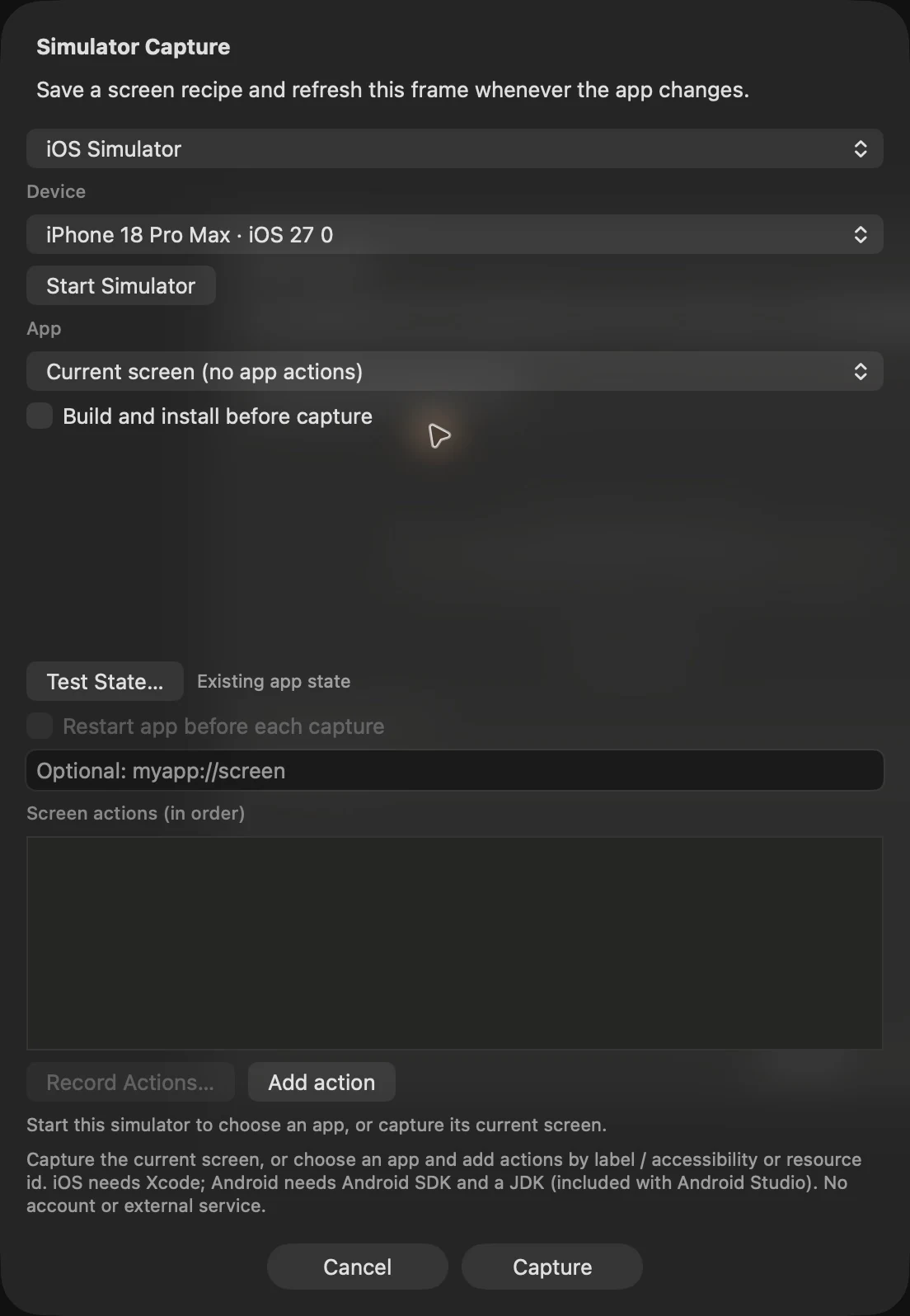
Connect a local simulator or emulator
Choose Add Frames → Image / PDF → Capture from Simulator…, then select iOS Simulator or Android Emulator and the target app. iOS needs local Xcode and an installed simulator runtime; Android needs the Android SDK and JDK. Web Frames can start an existing device and control an installed app. Choose Current screen for a quick snapshot, or choose an app to record and replay a recipe. Capture targets simulators and emulators, not physical phones.
No tapflow account or token is required. Local SDKs and your app’s normal build dependencies are still needed.
Save how to reach the screen
Use Record Actions… to capture supported clicks, vertical swipes and text entry through the native preview. Save the resulting screen recipe. Use Test State… for a named account, test data, theme, launch arguments and preparation actions.
Use test values rather than passwords or production customer data. A test-state preset prepares your app with saved values and actions; it does not create backend accounts or reset an arbitrary server database.
Build and refresh the same frames
Review native source changes with your external coding agent first; Web Frames’ built-in Fix/Apply handles web source, not Swift or Kotlin. Then enable Build and install before capture when the new UI requires a local build. Choose the Xcode scheme or Gradle module/variant and exact bundle/application ID. Android build/install requires a universal APK; split APKs and app bundles are not supported. Running project build scripts requires separate permission. Update-install keeps existing app data.
Refresh one frame, selected saved screens or all saved recipes on the board. Mixed iOS/Android batches support up to 20 screens, report results per screen and use one Undo for successful updates. Comments and links remain attached to the frames; failed captures do not replace their stored images.
Let an agent repeat the saved capture
A connected MCP agent can run saved recipes when Allow agents to capture simulator screens is enabled. This is separate from permission to accept an externally captured image and from permission to build a local project.
Use Start live preview when you want to watch the selected screen temporarily. It previews one selected frame without saving video or replacing the board’s stored screenshot. For a lasting review record, explicitly capture or refresh the frame.
Example agent brief
Adapt the frame and section names to your board. Send this through your connected agent.
Refresh the saved onboarding recipes after the reviewed change. Use the existing test state, report failed captures without replacing their images, and compare the updated frames with their pinned comments. Do not enable additional permissions.
Try this on your next review
Web Frames 1.1.9 runs on Apple Silicon Macs with macOS 15 or later.
Download Web Frames 1.1.9